
How to Modify Your Listing on SKINA
Keeping your service listings updated is essential for attracting the right clients. Here’s a simple step-by-step guide to help you edit your listing on SKINA.
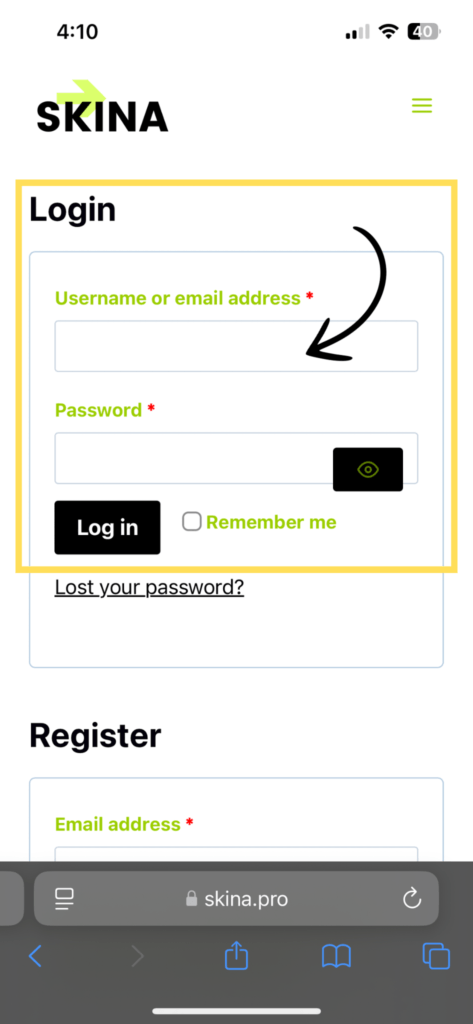
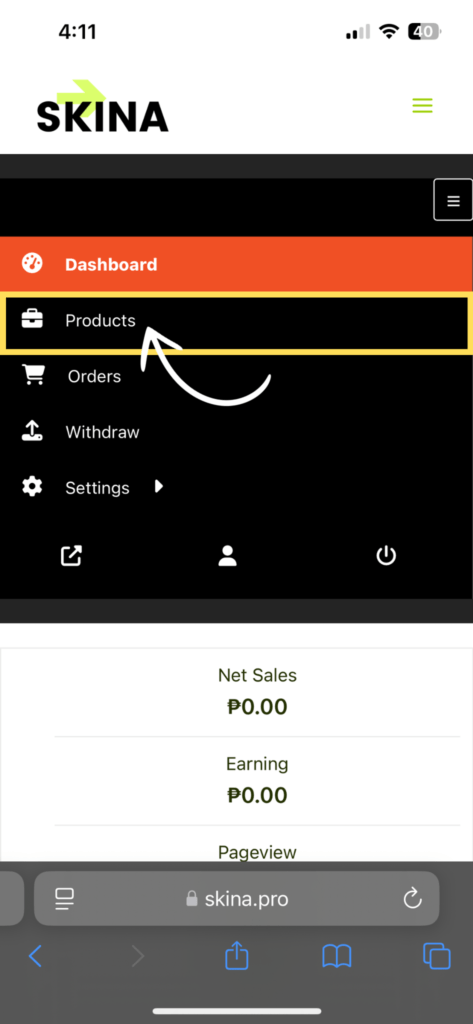
Step 2: Go to Your Products
Click or tap on “Products” to view your service listings.
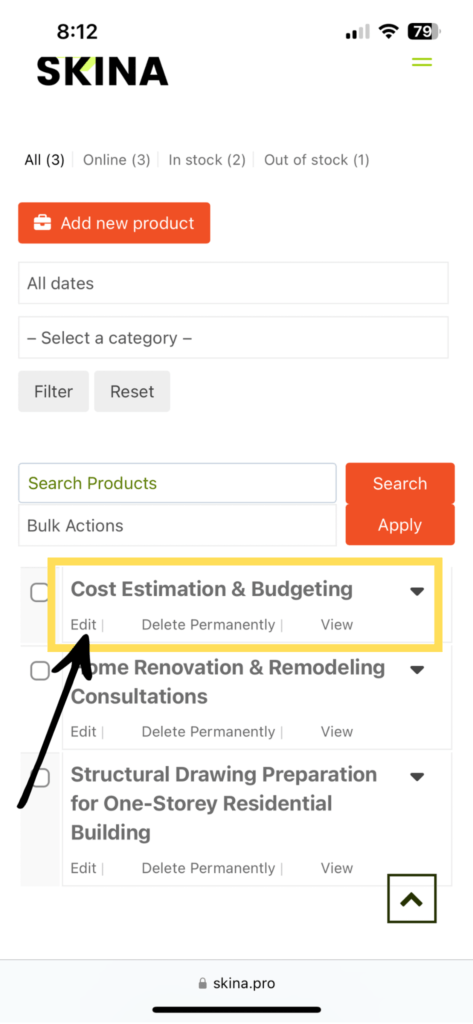
Step 3: Click/Tap “Edit” under the Service You Want to Modify
Find the service listing you want to modify. Hover your mouse below the title until you see the “Edit” option.
Step 4: Make Your Edits
You can modify the following details:
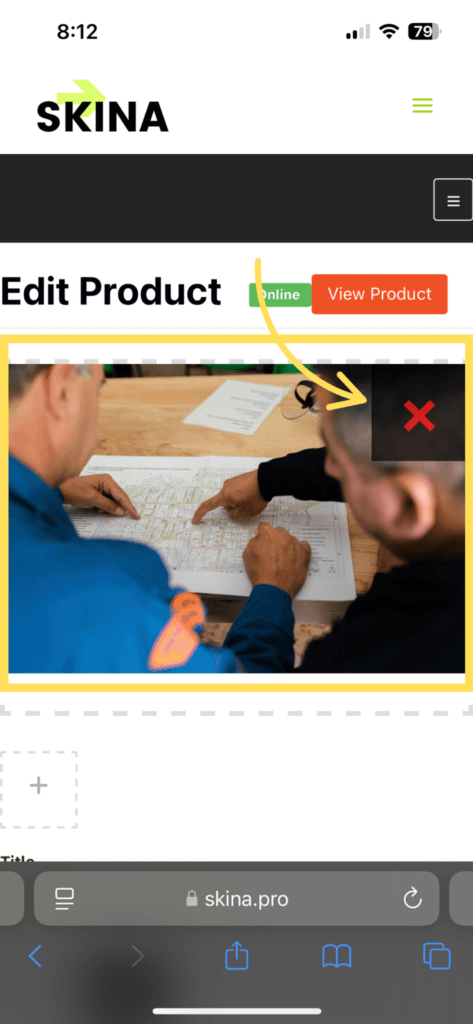
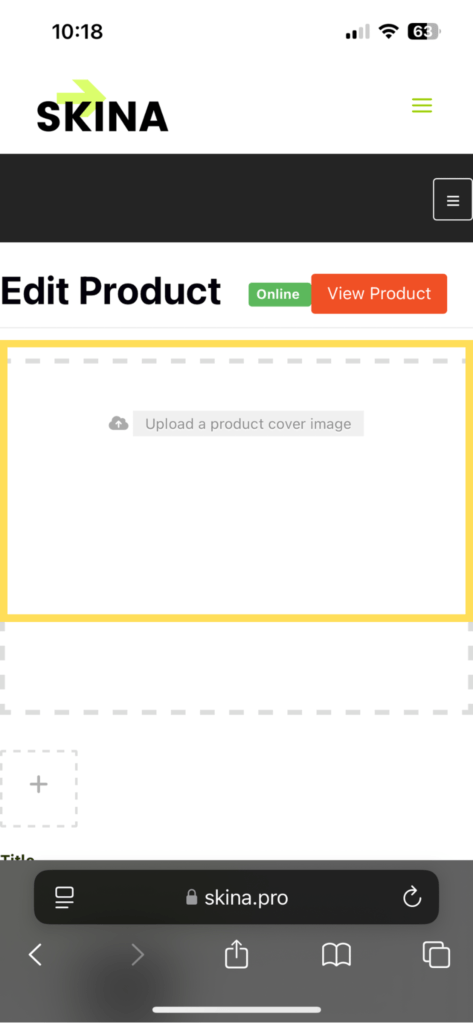
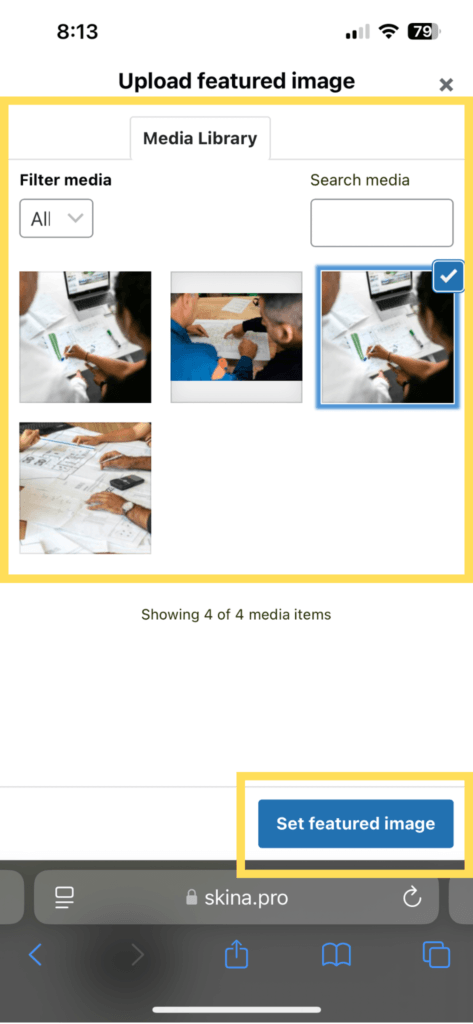
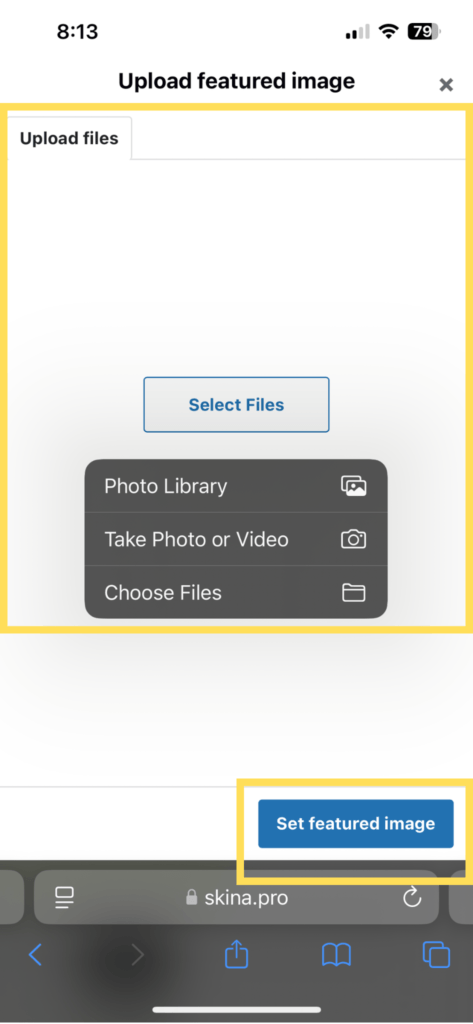
- Cover Photo: Hover over the current cover photo and click the “X” to remove it. Then, click “Upload a product cover image” and choose an image from your media library or upload a new one from your device. Click “Select Featured Image” when done.
- Title: Click or tap the title box and enter your updated title.
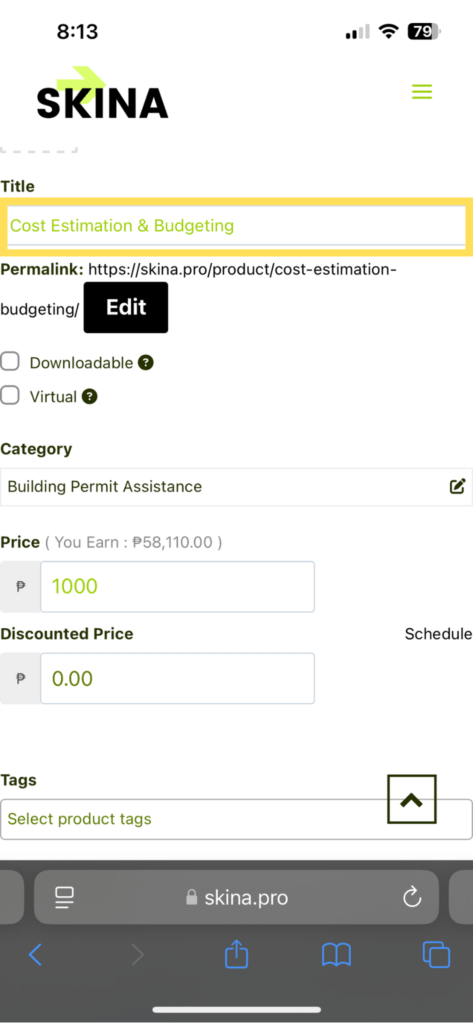
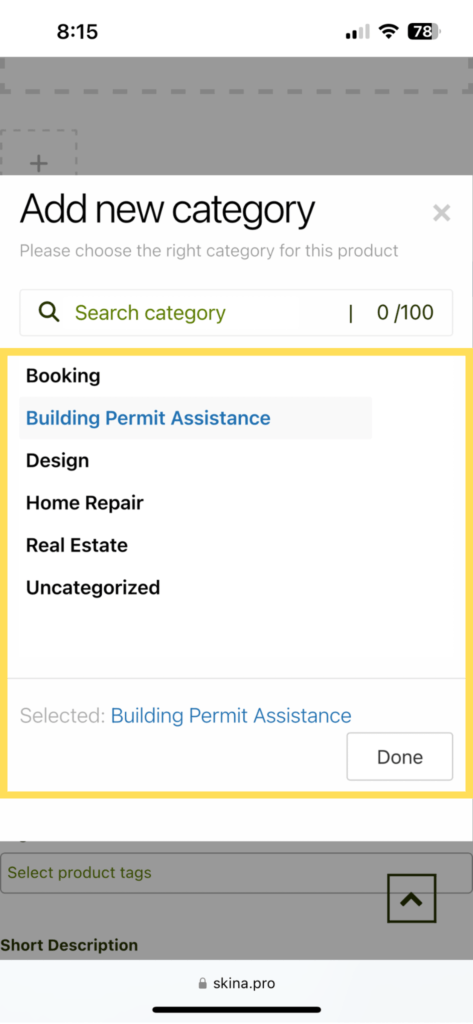
- Category: Click the category box, select a new category, and then click “Done”.
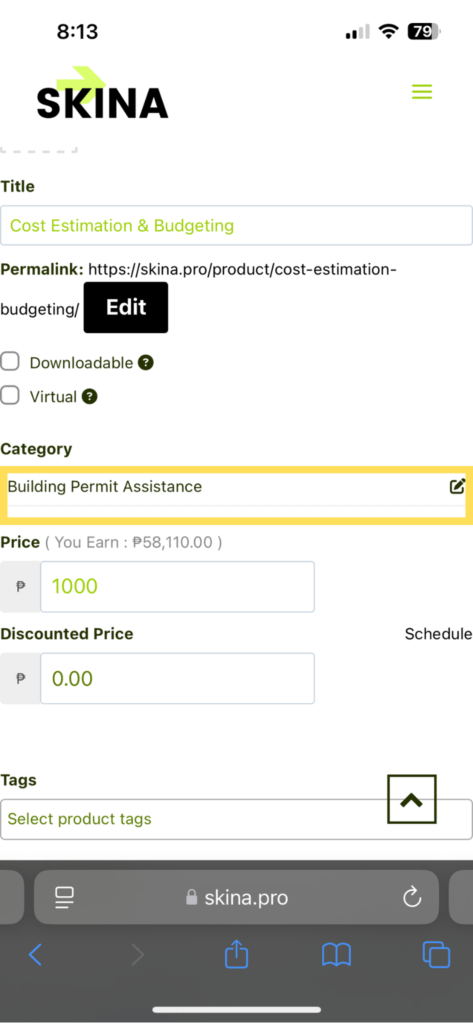
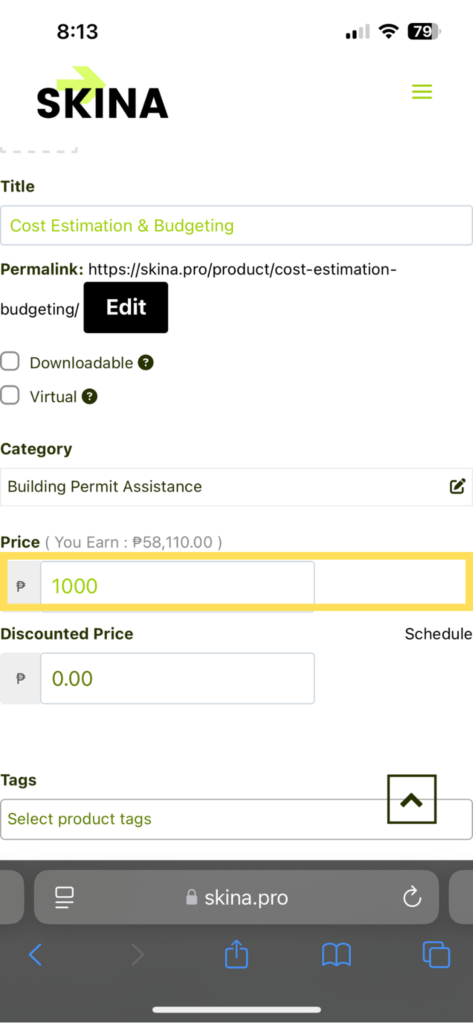
- Price: Enter your updated price in the price field. (If your service is free, set it to 0.00.)
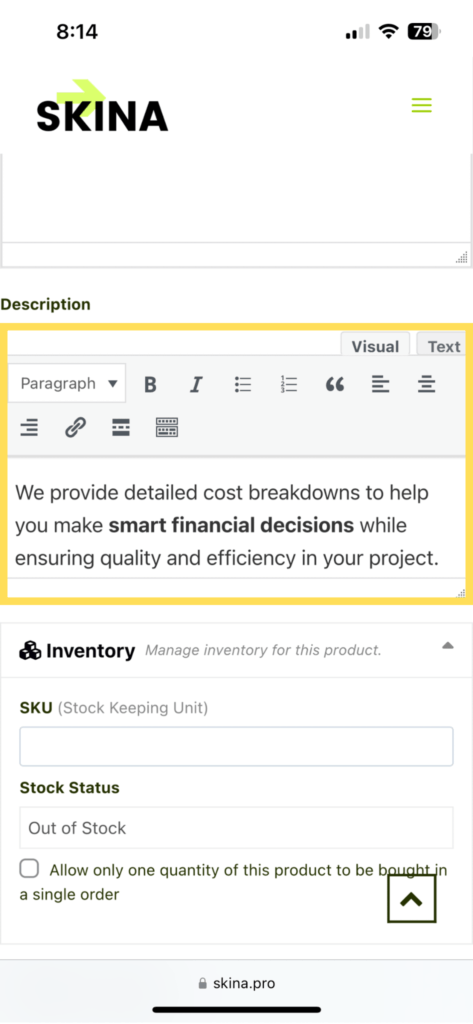
- Description: Click on the description box and edit your service details as needed.
Step 6: Save Your Changes
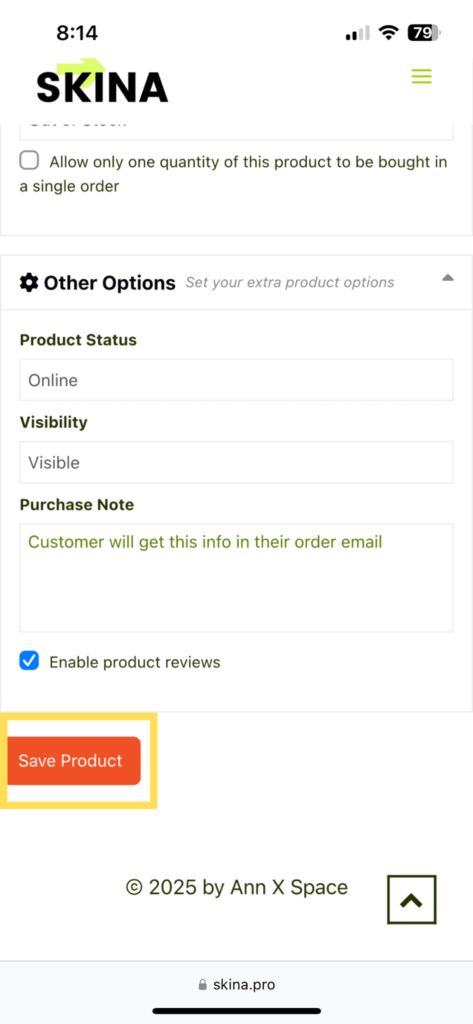
Once you’ve made your edits, scroll down and click “Save Product” to apply the changes.
Step 7: Review Your Listing
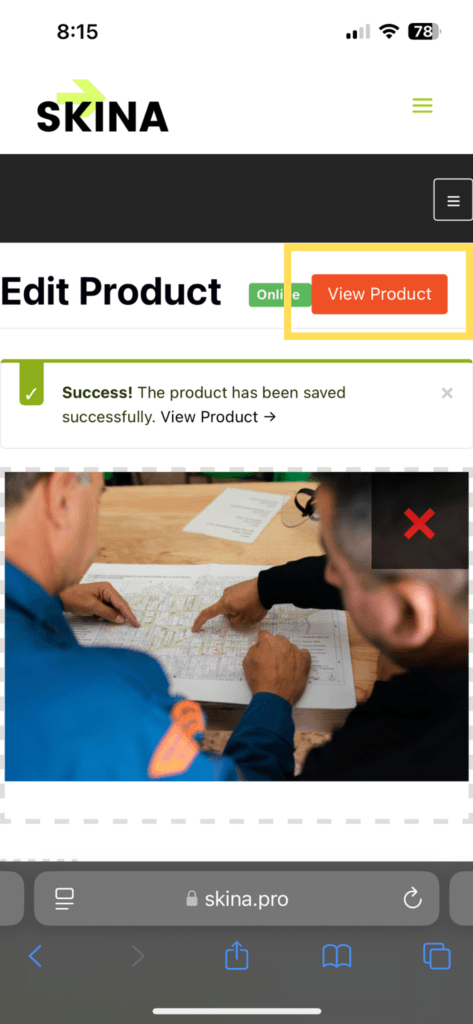
Click or tap “View Product” to check if your updates have been successfully applied.
Your listing is now updated and ready for potential clients! 🚀